Download · Windows
Zerno on Windows: download and first launch
Downloading Zerno-8-setup.exe
The download starts by itself. If it did not — download by hand.
You need Windows 10 (version 2004 or later) or 11 and a graphics card that supports DirectX 12. The requirements in detail are on the Support page.
01 · Keep the installer
The installer does not carry a developer certificate yet, so the browser and Windows may ask whether you trust the file. This is neither an error nor a virus — the system simply does not know the developer.
- Edge may warn while downloading that this file is not commonly downloaded.
In the downloads list hover over the file Zerno-8-setup.exe, press "…" and
choose Keep.
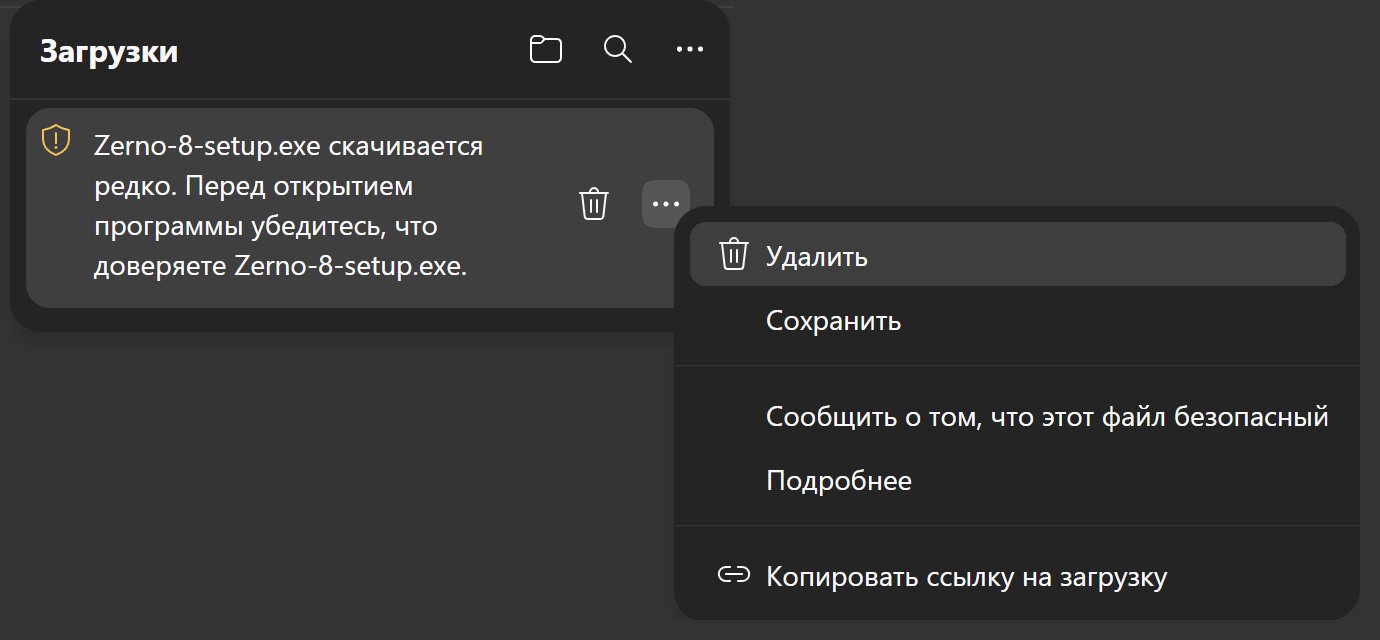 Edge: “…” → Keep (Russian Windows on the screenshot: «Сохранить»)
- In the next window press the arrow next to the Delete button and choose Keep anyway.
In Chrome the same button is called "Keep anyway" too.
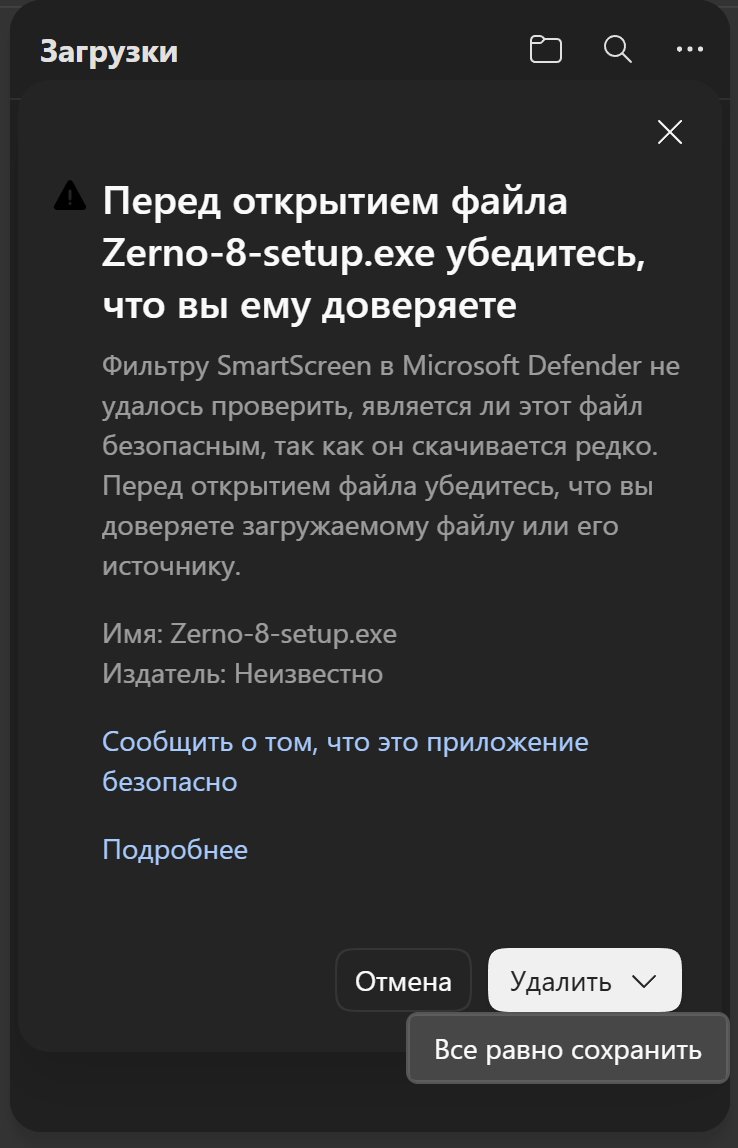 Edge: the arrow next to Delete → Keep anyway (on the screenshot: «Удалить», «Все равно сохранить»)
02 · Install
- Run the downloaded installer from your Downloads folder. If Windows shows a blue window saying "Windows protected your PC", press More info — not "Don't run".
- A Run anyway button appears in the same window — press it, and the installer opens.
- The installer asks who to install for: leave Install for me only
(recommended), and you will not need administrator rights. The folder and the desktop
shortcut can stay as offered: Next, then Install. Zerno appears in the Start
menu, and the last window offers to launch the program straight away — leave the box
ticked and press Finish.
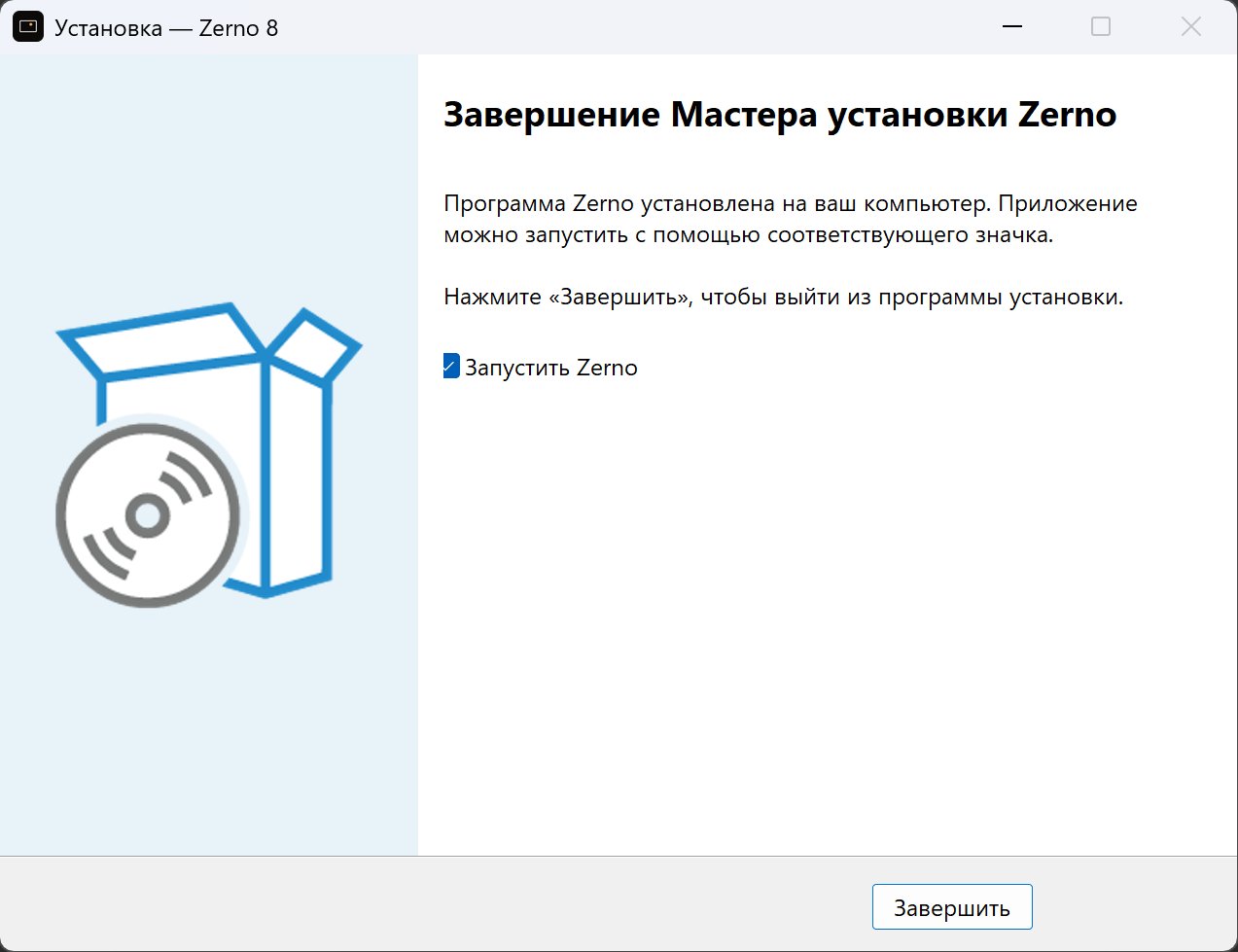 The installer: Launch Zerno → Finish (on the screenshot: «Запустить Zerno», «Завершить»)
03 · First launch
- The licence window opens. Try it for 3 days — no code needed: for
three days the whole program works; you need the internet at every launch, and the trial
is given once per computer. Already bought — paste the code that looks like
ZRN-XXXX-XXXX-XXXX from the email into the code field and press
Apply.
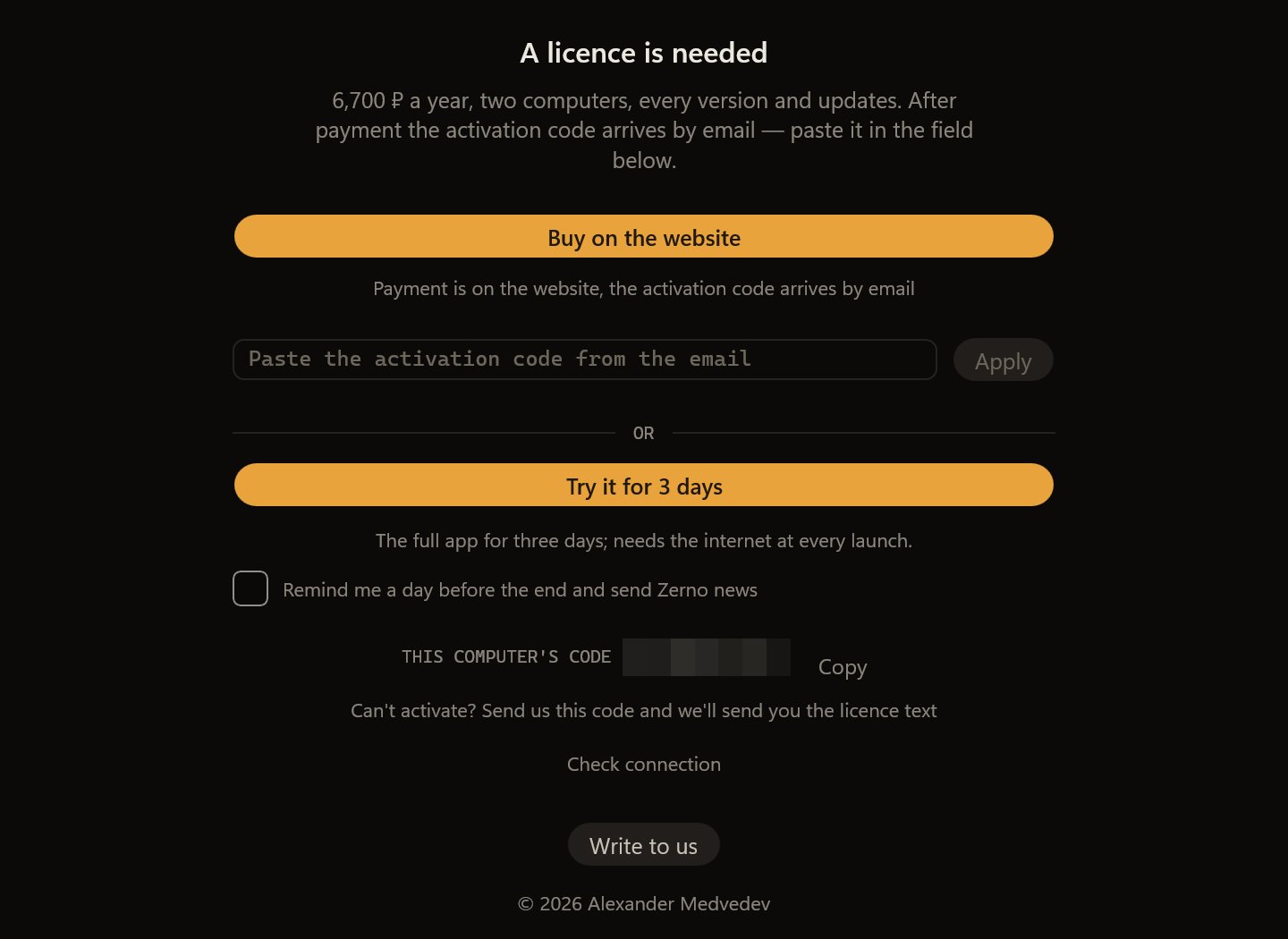 The licence window: the code from the email and Apply — or Try it for 3 days
- Press Add frames… in the middle of the empty library, or simply drag photos or a folder onto the window. Then — First steps: pick the keepers, choose a preset, print.
No code yet — how to get a licence. Something is wrong — Support or write to ask@zerno.photo.